HTTP POST, Forms, and AJAX
Making web apps interactive with POST, Forms, and AJAX
HTTP POST
POST Request
- A POST request, or any request containing a body, will be formatted similar to your HTTP responses
POST /path HTTP/1.1
Content-Type: text/plain
Content-Length: 5

hello
POST Request
- More accurately
POST /path HTTP/1.1\r\nContent-Type: text/plain\r\nContent-Length: 5\r\n\r\nhelloPOST Request
- When parsing, there will be Content-Length and Content-Type headers
POST /path HTTP/1.1
Content-Type: text/plain
Content-Length: 5

hello
POST Request
- Look for the blank line that separates the headers from the body
\r\n\r\n
- Read everything after this blank line
- Make sure you've read "Content-Length" number of bytes
- It's possible to only receive part of a request and have to read the rest from the TCP socket
POST /path HTTP/1.1
Content-Type: text/plain
Content-Length: 5

hello
POST Request
- When you read the content from the body:
- Do whatever your server does based on its feature for this path
- Send a response to the client
POST /path HTTP/1.1
Content-Type: text/plain
Content-Length: 5

hello
Query String
- Allow users to send information in a URL
- Common Application:
- User types a query in a search engine
- Their query is sent in the URL as a query string
URL Recall
Protocol://host:port/path?query_string#fragment- Query String - [Optional] Contains key-value pairs set by the client
- https://www.google.com/search?q=web+development
- HTTPS request to Google search for the phrase "web development"
- https://duckduckgo.com/?q=web+development&ia=images
- An HTTPS request to Duck Duck Go image search for the phrase "web development"
- Fragment - [Optional] Specifies a single value commonly used for navigation
- https://en.wikipedia.org/wiki/Uniform_Resource_Identifier
- HTTPS Request for the URI Wikipedia page
- https://en.wikipedia.org/wiki/Uniform_Resource_Identifier#Definition
- HTTPS Request for the URI Wikipedia page that will scroll to the definition of URI
Query String Format
https://duckduckgo.com/?q=web+development&ia=images- Preceded by a question mark -
? - Consists of key-value pairs
- Key and value separated by
= - Pairs separated by
&
- Key and value separated by
- Can only contain ASCII characters
- Cannot contain white space
Percent Encoding
- If a non-ASCII character is sent as part of a query string it must be url-encoded (or percent-encoded)
- Specify byte values with a
%followed by 2 hex values 한is encoded as%ed%95%9c<-- single space is encoded as%20
White Space
- URLs cannot contain spaces
- Spaces can be percent encoded as
%20 - Can also replace spaces with
+- The reserved character
+indicates a key mapping to multiple values
- The reserved character
Reserved Characters
- Some ASCII characters are reserved
- Example:
?begins a query string
- Example:
- Reserved characters must be %-encoded
- Notable characters that are NOT reserved
- Dash
- - Dot
. - Underscore
_ - Tilda
~
- Dash
| Reserved | Characters |
|---|---|
: |
# |
& |
* |
/ |
+ |
' |
@ |
? |
, |
( |
) |
[ |
] |
! |
; |
$ |
= |
HTML Forms
Dynamic Pages
- We've learned how to host static content from our servers
- Content does not change
- For the rest of the semester we'll add dynamic features
- Users can change content and interact with other users
- No longer making web sites
- Now we're developing Web Applications
HTML Forms
- The action attribute is the path for the form
- The method attribute is the type of HTTP request made
- When the form is submitted, an HTTP request is sent to the path using this method
- This behaves similar to clicking a link
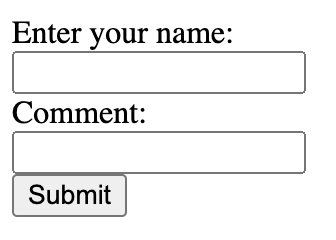
HTML Forms
- Use input elements for the user to interact with the form
- The type attribute specifies the type of input
- This input is a text box
- The name attribute is used when the data is sent to the server
HTML Forms
- Should provide a label for each input
- Helps with accessibility (eg. Screen readers)
- Clicking the label focuses the input
HTML Forms
- An input of type submit makes a button that will send the HTTP request when clicked
- The value attribute is the text on the button
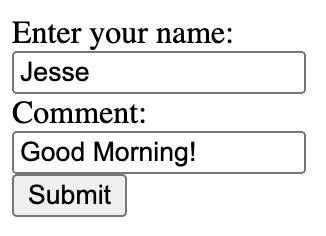
HTML Forms
GET /form-path?commenter=Jesse&comment=Good+Morning%21 HTTP/1.1- This sends a GET request containing the form data in a query string
- Page reloads with the content of the response
HTTP GET Limitations
- Sending form data in a query string can cause issues
- Browsers and servers have limits on the length of a URL
- Browsers and servers have limits on the the total length of a GET request, including headers
- Typically a 4-16kB
- How would we upload a file? URL must be ASCII. Entire file would be % encoded
- Enter POST requests
HTML Forms - POST
- Change the method of a form to post to send the entered data in the body of a POST request
HTML Forms - POST
- A request is sent to the path from the action attribute without a query string
- Content-Type is a url encoded string containing the entered data
- Same format as the query string
- Read the Content-Length to know how many bytes are in the body
- Foreshadow: Very important when receiving more data than the size of your TCP buffer
POST /form-path HTTP/1.1
Content-Length: 27
Content-Type: application/x-www-form-urlencoded

commenter=Jesse&comment=Good+morning%21
HTML Injection Attacks
HTML Injection
- When hosting static pages
- You control all the content
- Limited opportunity for attackers
- When hosting user-submitted content
- You lose that control
- Must protect against attacks
- Never trust your users!!
Never Trust Your Users!
Never Trust Your Users
- You may want to think your users will all act in good faith
- For most users, this may be true
- Besides your intended users, who else can access your app?
- EVERYONE!
Never Trust Your Users
Do you trust literally everyone??
HTML Injection
- You are now handling user data and sending it to other users (Through chat messages)
- You're building a form that accepts user data and serves it to all other users
- What happens when a user enters this in chat:
HTML Injection (XSS)
- This attack is called an HTML injection attack
- This string is uploaded to your server
- Your server stores this string
- Your server sends this string to all users who use your app
- Their browsers render the injected HTML
- Their browsers runs the injected JS
HTML Injection
- Lucky for us, Preventing this attack is very simple
HTML Injection
- To prevent this attack:
- Escape HTML when handling user submitted data
- Escape HTML
- Replace
&,<, and>with their HTML escaped characters &->&<-><>->>
- Replace
HTML Injection
- The escaped characters
&<>will be rendered as characters by the browser - Browser does not treat these as HTML
HTML Injection
- Replace
&,<, and>with their HTML escaped characters
becomes
and is rendered as a string instead of interpreted as HTML
HTML Injection
- Replace
&,<, and>with their HTML escaped characters - Order is important!
- Always escape & first
- If
&is escaped last you'll get:
- Which will not render the way you intended
AJAX & Polling
User Interaction
- Our goal is to add more interactivity to our site
- Submitting a form reloads the page after submission
- We want:
- To send messages without a reload
- Get new data without a reload, or any action from the user
AJAX
Asynchronous JavaScript [And XML]
A way to make HTTP requests using JavaScript after the page loads
AJAX - HTTP GET Request
var request = new XMLHttpRequest();
request.onreadystatechange = function(){
  if (this.readyState === 4 && this.status === 200){
    console.log(this.response);
  }
};
request.open("GET", "/path");
request.send();- Use JavaScript to make an AJAX request
- Create an
XMLHttpRequestobject - Call
opento set the request type and path - Call
sendto make the request
AJAX - HTTP GET Request
var request = new XMLHttpRequest();
request.onreadystatechange = function(){
  if (this.readyState === 4 && this.status === 200){
    console.log(this.response);
  }
};
request.open("GET", "/path");
request.send();- Set onreadystatechange to a function that will be called whenever the ready state changes
- A ready state of 4 means a response has been fully received
- In this example, when the ready state changes to 4 and the response code is 200, the response is printed to the console
- This is where the response would be processed
AJAX - HTTP POST Request
var request = new XMLHttpRequest();
request.onreadystatechange = function(){
  if (this.readyState === 4 && this.status === 200){
    console.log(this.response);
  }
};
request.open("POST", "/path");
let data = {'username': "Jesse", 'message': "Welcome"}
request.send(JSON.stringify(data));- To make a post request:
- Change the method to POST
- Add the body of your request as an argument to the send method
Forms and AJAX
- We have choices for the format when sending the data of the AJAX request
- We can use an HTML form
- Add an onsubmit attribute that calls your JavaScript function
- Add
return falseto block the page reload - Or use
event.preventDefault();in the JS function
- Add
- Use JavaScript to read the data from the entire form
Encodings - JSON
- Another option: Manually format the data using JSON
- Don't use the form element
- Create a button instead of a submit input
- In JavaScript, read the value of each input and create your own JSON object
Fetch
Polling
Making it Live
- What if someone chats after you load the page?
- Have to refresh or send a new AJAX call to get the new data
- AJAX is preferred, but what triggers the AJAX request?
- Polling
- Keep sending AJAX requests at fixed intervals to refresh the data
Polling
- Browser sends requests for updates at regular intervals
- Use setInterval
- Takes a function to be called
- Takes the number of milliseconds to wait between function calls
- This example calls
getMessages()(Implementation not shown) every secondgetMessages()will make the AJAX call to get the most recent data from the server and render it on the page
Polling
- Easy to implement
- Assuming the AJAX calls are already setup
- Just telling the browser to keep making requests to the server
- Limitations
- Users wait up to an entire interval to get new content
- Lowering the interval length increases server load and bandwidth
Long-Polling
- Server hangs on requests (Intentionally)
- Client makes a long-poll request to get the most current data
- If there's new data, the server responds just like polling
- When the response is received, client makes another long- poll request
- If there's no new data, the server does not send a response
- Server waits until there is new data to be sent, then responds
- Timeouts
- If there's no new data after ~10-20 seconds, server responds with no new data
- Client gets the response and sends a new long-poll request
Long-Polling
- End result
- The client always has a request waiting at the server
- Whenever the server has data to send to the client, it responds to the waiting request
- Real-time updates!
- Minimal delays between users without excess server load
- *If designed properly. This is not true if each request requires it's own thread
- We'll reach this same goal with WebSockets
- More modern solution